Run this test after your registration form is built and before any family has the link. It takes about 45 minutes with two people and one phone. Each check below says how to run it, what counts as a pass and what counts as a fail, and four of the fails mean you should not open yet.
If you are still designing the form, start with our guide to setting up online registration for a youth soccer club. This page assumes those decisions are made.
Ground rules that keep the test safe
A registration test touches real systems: your club account, your payment processor and your families' inboxes. These rules keep it from causing problems you then have to clean up.
Never use a real card to test payment on a live form. Stripe's testing documentation says its services agreement prohibits testing in live mode with real payment details. Test card numbers only work in a Stripe sandbox, which your club's live form usually is not.
Do not charge and refund to "see if it works." With Stripe, the original processing fee is not returned on a refund, and a refund does not undo the registration, the emails already sent or the record in your reports.
Test before anyone real has the link. Once real families are registering, test records mix into your roster, totals and capacity counts.
Never test on a form that already has families on a waitlist. In some systems, including Centro, rejecting an application moves the next waitlisted family up and emails them. Rejecting your own test registration would do that to a real family.
Use obviously made-up people and an inbox you control. For example "Test Rivera" with your own address plus a tag (yourname+test1@...). Never enter a real child's details.
Know what deleting leaves behind. Ask your provider, or check yourself, whether removing a test registration also removes its invoice, emails and report entries. Plan for some traces to stay, and keep test volume small.
For the payment step, check everything up to the card form: the amount, the fee breakdown and the wording. Then ask your provider to show a successful payment and a declined card in their own test environment, and confirm what the parent and the staff see in each case.
The procedure
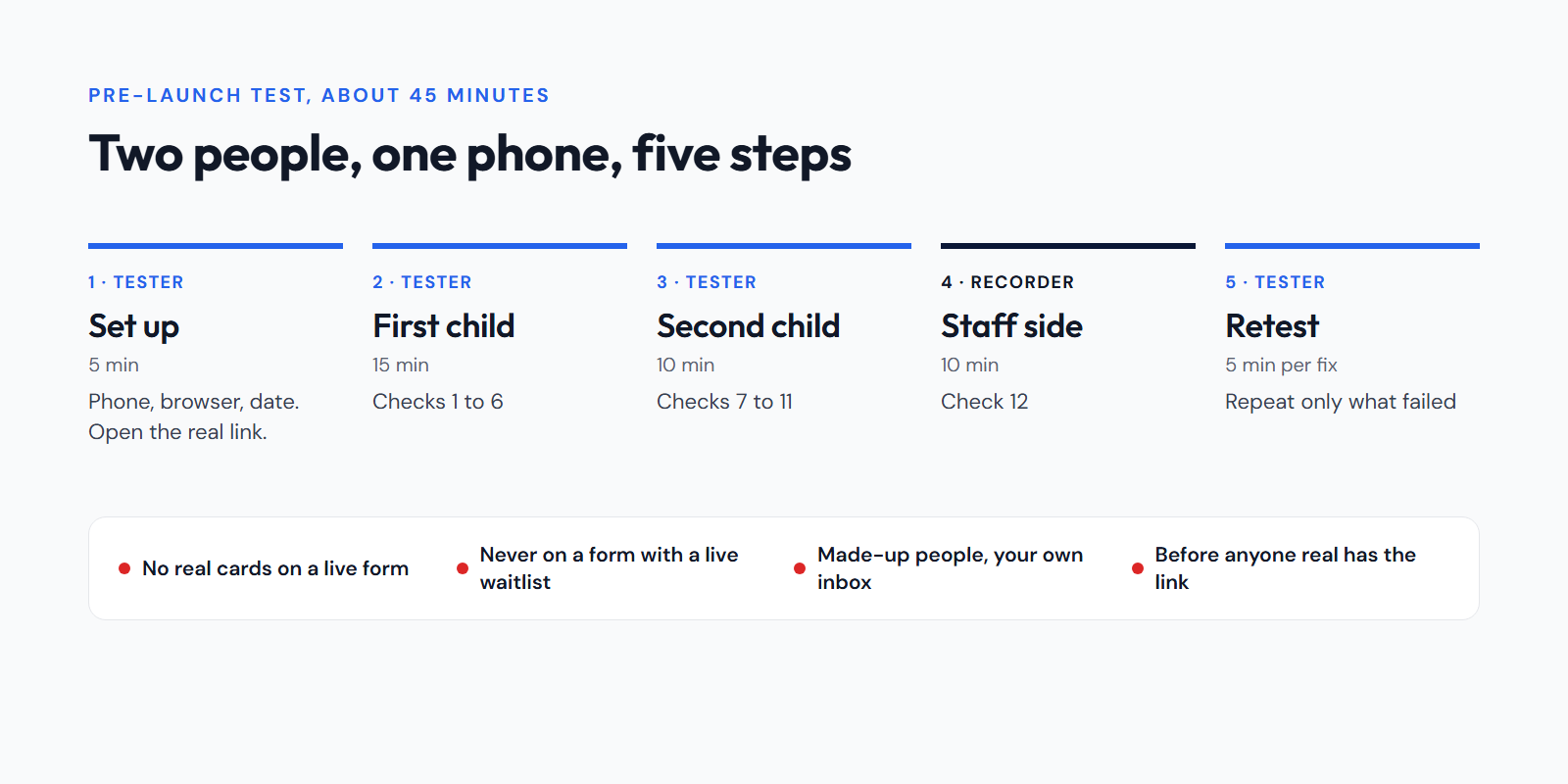
Two people: a tester who did not build the form, holding a phone, and a recorder who built it and writes down results without helping. The builder knows where everything is, which is exactly why they should not be the one tapping.
Set up (5 minutes). Note the phone model, browser and date. Open the link exactly as families will get it: from the announcement draft, the QR code or the website button.
First child (15 minutes). The tester registers one made-up child in the program a parent would choose, thinking aloud. Run checks 1 to 6.
Second child (10 minutes). Add a sibling in a different age group. Run checks 7 to 11.
Staff side (10 minutes). The recorder opens the staff view and finds both children. Run check 12.
Retest (5 minutes per fix). Fix what failed, then have the tester repeat only those checks. A check passes only after a retest shows it working.
The 12 checks
1. Link. How: open it from the real announcement, QR code or button. Pass: this season's form loads on mobile data. Fail: last season's form, an error page or a login wall. Hold the opening if this fails.
2. Fit. How: scroll the whole form upright with the keyboard open. Pass: no sideways scrolling, and nothing covers the next field or the submit button. Fail: anything has to be zoomed or panned to reach.
3. Program facts. How: before typing anything, read the top of the form. Pass: birth-date range, season dates, field, full fee and deadline are visible. Fail: the tester has to leave the form to find any of them.
4. Birth dates. How: enter a birth date inside the range, one just outside it, and dates on both sides of August 1 and January 1. Pass: each child is accepted or stopped exactly as your 2026-27 age rules say. Fail: an eligible child is stopped, an ineligible child gets through, or a child is quietly put in a different program. Hold the opening if this fails.
5. Labels and targets. How: fill every field with a thumb. Pass: every label says whose information it wants and stays visible while typing, and every button and checkbox is easy to hit. Fail: the tester taps the wrong control or asks "whose phone?"
6. Error recovery. How: leave a required field empty and submit. Pass: the message names the field, and fixing it keeps every other answer. Fail: a vague error, or answers are wiped.
7. Sibling. How: add a second child in a different age group. Pass: the parent does not retype their own details, and each child keeps their own program. Fail: details are re-entered, or the second child inherits the first child's program.
8. Price. How: compare the amount shown with your program page. Pass: same total, the early-bird price applies only before its deadline, and any service fee is shown before payment. Fail: any difference from what you advertised. Hold the opening if this fails.
9. Waivers. How: open every document on the phone. Pass: readable without zooming, separate documents for separate consents, and a signature is collected for each child it covers. Fail: one signature covering several documents or children, or text that needs pinch-zoom.
10. Payment step. How: go up to the card form without paying (see the ground rules), or confirm the "invoice after approval" message if the form bills later. Pass: the parent knows what they owe, when, and how to pay later if they stop. Fail: the parent cannot tell whether they have paid or what happens next. Hold the opening if this fails.
11. Confirmation. How: read the final screen and the email in your test inbox. Pass: both name the player and program and say plainly whether the child has a place, an application under review, a waitlist position or a tryout slot, and what was paid or will be invoiced. Fail: anything that implies a place the child does not have.
12. Staff record. How: find both children on the staff side. Pass: each has the right program, guardian, waiver record and status, and the payment status matches what the parent saw. Fail: a child is missing, duplicated or shows a different amount.
When to hold the opening
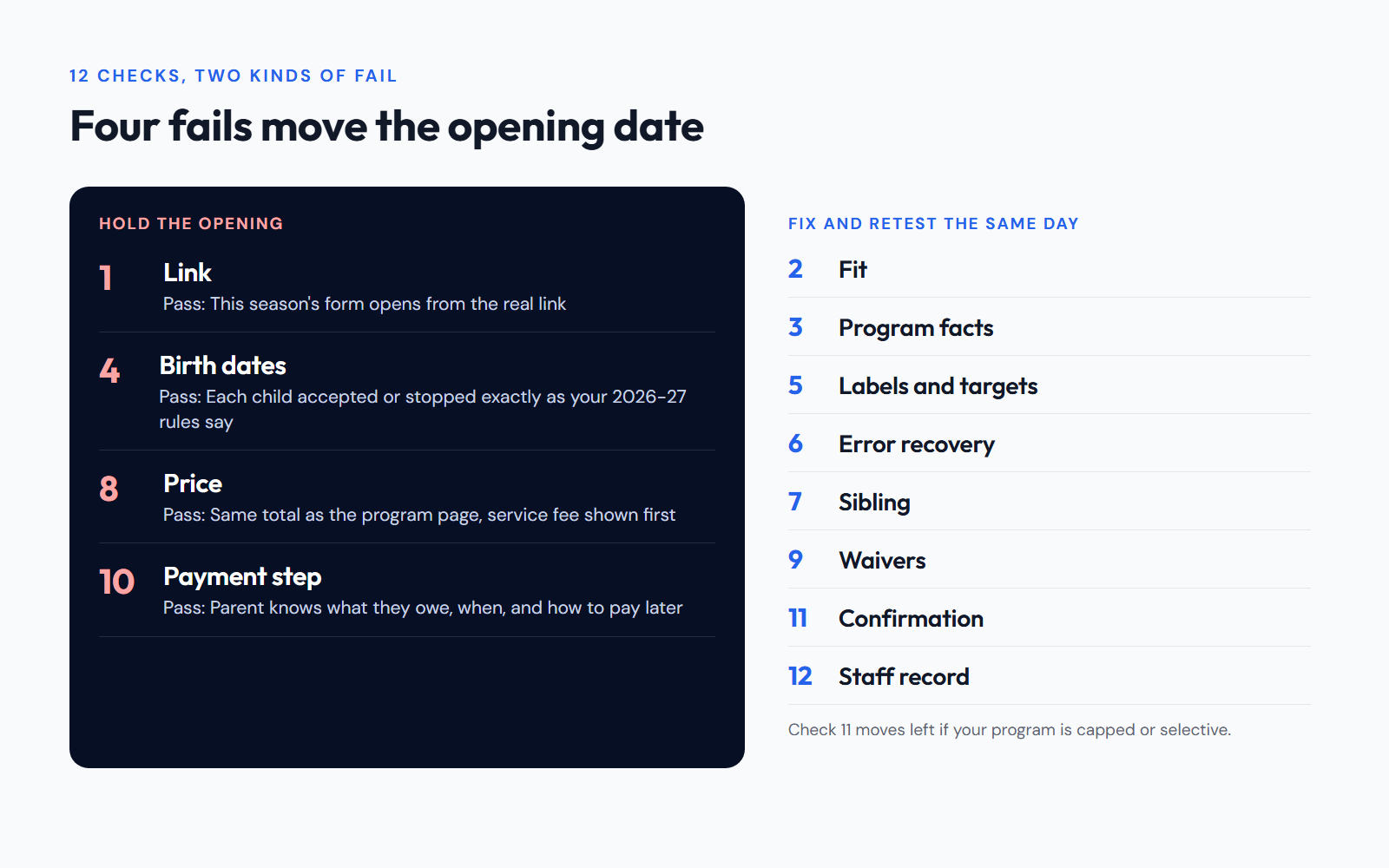
Most fails can be fixed the same day and retested. Four cannot be left open: a broken link (check 1), wrong age-group handling (check 4), a wrong price (check 8) and a payment step that leaves parents unsure what they owe (check 10). If any of these is still failing, move the opening date. A confirmation that promises a place the child does not have (check 11) belongs on the same list if your program is capped or selective.
Record results in one line each
For every check, write: check number, phone and browser, expected result, actual result, pass or fix, who fixes it, and when it will be retested. A shared spreadsheet is enough.
For example: "Check 11. Android, Chrome. Expected: application under review. Got: 'You're all set.' Fix: registrar rewrites the confirmation text in English and Spanish. Retest Thursday."
Keep screenshots free of real names and payment details. When you finish, remove or clearly mark the test registrations so they do not end up on a roster, and note any traces your system keeps.
What you should see if you are testing in Centro
Check 4: the form shows a calculated age group and stops birth dates outside the form's age groups before submission. Centro checks by birth year, not the August 1 cycle, so the result for the same child can change on January 1. Test those dates deliberately.
Check 7: after the first child, "Register another child" keeps the parent's details.
Check 9: the parent types their name and draws a signature once for each child each waiver covers.
Check 10: on forms that bill after approval (the default for new forms), the screen says the club will review the registration and send an invoice once it is approved. On forms that bill at sign-up with Stripe connected, siblings registered together share one invoice and pay by card in the same pass.
Check 11: one confirmation email per child, in the language the family used, with the subject "Registration received" followed by your club's name and any confirmation text you wrote.
Check 12: each application shows its status (pending, under review, approved, rejected or waitlisted), and invoices show what has been paid.
Testing a capped form? Do not fill a live form with test registrations. Use a separate form you will never share, with a cap of one, and remember the test records will stay in your account. Running tryouts? The confirmation must say it is a tryout registration, not a team offer; our guide to running youth soccer tryouts covers what to tell families.
When all 12 checks pass, write the announcement and link to the exact form you tested. Our parent message templates include registration announcements in English and Spanish.