
Most parents will open your registration link on a phone, often between other things. Setting it up well is mostly about decisions you make before you touch a form builder: which birth dates each program takes, when families pay, what happens when a program fills, and what the confirmation promises. Get those right and the form itself is short.
This guide covers those decisions and how to build the form around them. When it is built, the pre-launch test at the end of this guide is the next step.
Decide five things before you build anything
Write these down and agree them with your registrar, treasurer and one coach. Every later choice follows from them.
Programs and birth-date ranges. One line per program: name, level, birth dates accepted, season dates, training days and field.
The fee and when it is charged. The full price, any early-bird price and its deadline, what is not included, and whether families pay when they submit or after you accept them.
Capacity. Whether each program has a cap, and what you do when it fills.
Documents. Which waivers and consents you need, and which can wait until after placement.
What "registered" means. A guaranteed spot, an application you will review, or a tryout slot. The confirmation has to say the same thing.
Use the 2026-27 age-group dates, not last year's form
Age groups changed this season. US Youth Soccer, US Club Soccer and AYSO moved to an August 1 to July 31 age-group cycle starting with the 2026-27 season or registration year, replacing the calendar-year groups clubs used since 2016. US Club Soccer's season page lists August 1, 2026 to July 31, 2027 as its 2026-27 season. Leagues outside those organizations may set their own rules, so confirm with yours.
That makes "U-11" ambiguous to a parent who still remembers last year's chart. Print the exact birth-date range next to every program, for example "Born August 1, 2015 to July 31, 2016" for U-11 under the new cycle. Our age group calculator shows the 2026-27 group for a birth date, and affiliated Florida clubs should also check FYSA's registration guidance.
Then check what your registration software does with a birth date, because not every tool uses the August 1 cycle. In Centro, a form limited to an age group checks the birth date by birth year: "U-12" admits a child whose birth year makes them 12 or younger in the year they register, and birth dates outside the form's groups are stopped before submission. It does not apply the August 1 cutoff, and because it counts the registration year, the same child can get a different result before and after January 1. Put the exact range in the program description, and test birth dates on both sides of August 1 and January 1 before you share a form that stays open into the new year.
Choose when families pay
This decision shapes the whole form, and it matters most for families with more than one child.
Bill after you approve. The family submits, and nobody is charged yet. Staff review each child, and an invoice goes out when a child is accepted. Nobody pays for a spot they do not get, and you never refund a rejected family. The trade-off is a second step for parents, and a family with two children receives two invoices.
Bill at sign-up. The family pays during the same visit. It is one step for parents, and siblings submitted together can share one invoice. The trade-off is that you are holding money for applications you have not reviewed yet. If a program is selective or capped, you will be refunding families you turn away, and with Stripe, for example, the original processing fee is not returned when you refund a payment.
A simple rule: bill at sign-up when every eligible child who registers gets a place, as in most recreational programs without a cap. Bill after approval when you choose players, cap numbers or need to check documents first.
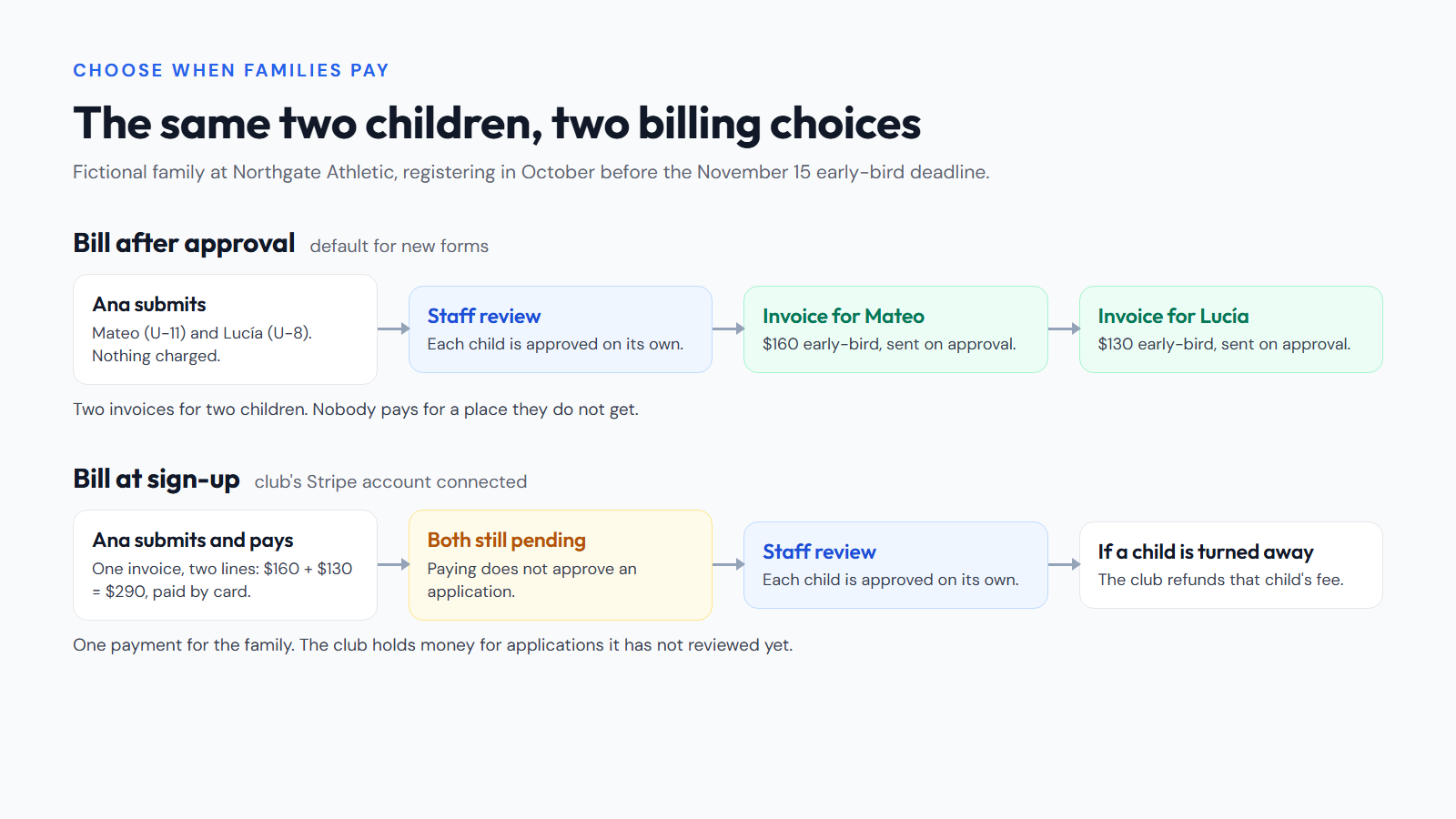
In Centro, this is set per form. New forms bill after approval, and the parent's screen says the club will review the registration and send an invoice once it is approved. The invoice uses the price the family saw when they submitted, so an early-bird registration keeps the early-bird price even if you approve it after the deadline. If a form bills at sign-up and your club's Stripe account is connected, siblings registered together get one invoice with a line per child and pay by card in the same pass. Either way, payment does not approve anyone. Staff still accept each application, so the confirmation should never say "your spot is confirmed" just because a card went through.
Decide what happens when a program fills
Set the cap before you open, and write down the rule for what comes next: who gets the next spot, how long a family has to accept it, and who contacts them.
In Centro, a form can have a maximum number of spots. Families who apply after it fills join a numbered waitlist and are not charged. If staff reject an application, the next family on the waitlist moves back to pending review and gets an email that a spot opened. They still need staff approval, and nothing is charged at that point. Centro does not move families up when someone drops out in any other way, so your rule should name the person who contacts the next family when an accepted player withdraws.
Show the whole price before the card form
The amount on the payment screen should match the number on your program page. List what the fee covers and what is separate, such as uniforms or tournament fees. Show an early-bird price next to its deadline.
If your club adds a service fee to online payments, show it as part of one price up front. For families who need financial help, put a named contact before the payment step rather than after it.
In Centro, a form can carry an early-bird fee that applies until a date you set. Card payments go through your club's own Stripe account and pay out to your bank on the schedule set in your Stripe account. Staff can record cash, check, Zelle or Venmo against the same invoice.
Discounts deserve a sentence on the form. In Centro, staff can apply a saved discount when they create an invoice by hand, but registration checkout and the invoices registration creates do not apply discounts, so there is no automatic sibling discount. If you offer one, decide before you open how you will honor it and say so on the form, so families do not pay full price and then write to you. For setting the price itself, our guide to pricing youth soccer programs and the fee calculator help with the math.
Build the form for thumbs
With the decisions made, the form is mostly about removing friction.
One link per program that opens without an account or an app download. Every extra step before the first question loses parents.
Program facts at the top: birth-date range, dates, field, full fee and deadline.
Only the questions you need before the first practice. For each question, ask who uses the answer and when. Collect the rest later.
Labels that say whose information you want. "Parent or guardian phone," not "Phone." Keep labels visible above the field; the W3C's guidance on form labels explains why gray hint text inside a box does not work as a label.
Buttons and checkboxes big enough to tap. WCAG 2.2 sets a minimum target size of 24 by 24 CSS pixels; bigger is kinder on a phone held in one hand.
A sibling path that does not repeat the parent's details, with each child keeping their own program.
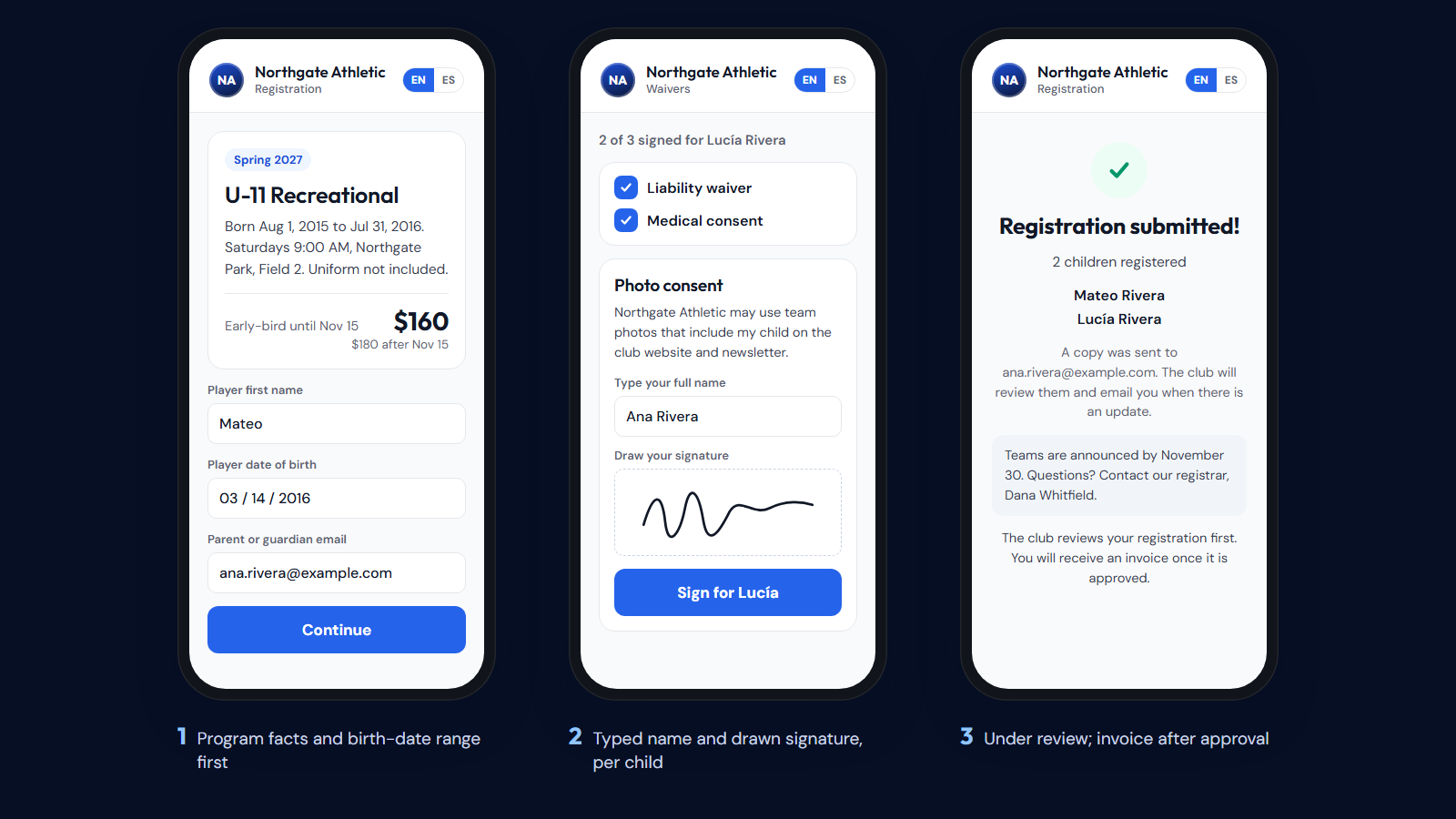
In Centro, each registration form has its own link, and parents complete it in a phone browser without creating an account. The form works in English and Spanish, and parents switch with one tap. You can add your own questions as short text, numbers, dropdowns or checkboxes. After the first child, the parent taps "Register another child" and keeps their own details. If you serve Spanish-speaking families, write your program description and confirmation text in both languages, because text your club writes appears exactly as you wrote it.
Keep waivers separate and readable
Parents scroll past waivers. Make each one short enough to read on a phone, with plain headings, and keep separate things separate: liability, medical consent, photo consent and a code of conduct. Do not bundle a photo release into a liability checkbox.
In Centro, you write or paste your own waiver text, in English and Spanish if you serve both. On the registration form, the parent types their name and draws a signature, once for each child the waiver covers, and the signed copy is kept with the exact text and language they saw. The wording is still your club's responsibility, so have it reviewed by whoever advises your board. Our guide to digital waivers covers the questions to settle first.
Write the confirmation to match your decisions
The confirmation is what parents screenshot and search for later. Write it before you open, and make it match the choices above: whether the child has a place or an application under review, what was paid or will be invoiced, when teams are announced, and who answers questions. "You're all set" is wrong when approval or payment is still to come.
In Centro, there are two separate texts to write, each in English and Spanish: the message on the confirmation screen and the text added to the confirmation email. The email goes out automatically when a family submits, one email per child, in the language the family used. Its default subject line is "Registration received" followed by your club's name. If your club has locations set up, they appear on the confirmation screen, not in the email. Tryouts need their own wording, because a tryout slot is not a team offer; our guide to running youth soccer tryouts covers what to tell families.
Before you share the link
Hand the draft link to someone who did not build the form and watch them register two made-up children on their own phone, then find both on the staff side. Do this before any real family has the link, and do not run real card payments to try the payment step. The start-a-club checklist lists the related setup steps, from setting registration fees to announcing registration.
Centro is $25 a month for the whole club, plus 2% on online payments. Stripe's processing fees are separate. The trial lasts 14 days and needs no credit card.